
Table Of Contents
Previous topic
Next topic
7. Map Design with Print Composer
7. Map Design with Print Composer
QGIS provides easy-to-use yet very powerful digitizing tools. Digitizing or digitization is a process of encoding map coordinates and attributes in digital form. This allows you to create and edit vector data using various data sources such as text files, paper maps, or satellite imagery. This exercise will guide you through the basic interface of vector digitizing using QGIS.
1. Open QGIS and create a new project. In the Menu, select Project ‣
 New Project.
2. Open Project Properties and click the Coordinate Reference System (CRS) tab. Set the following options.
Note
On the fly CRS transformation allows you to combine various data layers with different reference system into a single map view.
1. To load raster data, select Plugins ‣ OpenLayers plugin ‣
 Add Bing Aerial layer.
Note
A Raster dataset is composed of rows (running across) and columns (running down) of Pixel s (also know as cells). Each pixel represents a geographical region, and the value in that pixel represents some characteristics of that region.
Images with a pixel size covering a small area are called ‘high resolution’ images because it is possible to make out a high degree of detail in the image. Images with a pixel size covering a large area are called ‘low resolution’ images because the amount of detail the images show is low.
Some raster data have two files included. For example, a file with the tif extension is the image and the file with the extension tfw is the world file. World files describe the location, scale and rotation of the map. By adding a world file in any image, GIS applications can read and georeference almost any image. However, the world file does not give the proper coordinate reference system of the raster. More information here. In QGIS, you have to properly set the CRS for raster with world file.
1. Open the following admin_bnd.shp vector.
2. Zoom to the extent of admin_bnd.shp. Right click on the layer,
select  Zoom to Layer Extent.
3. Create a suitable symbology and color scheme for the layer.
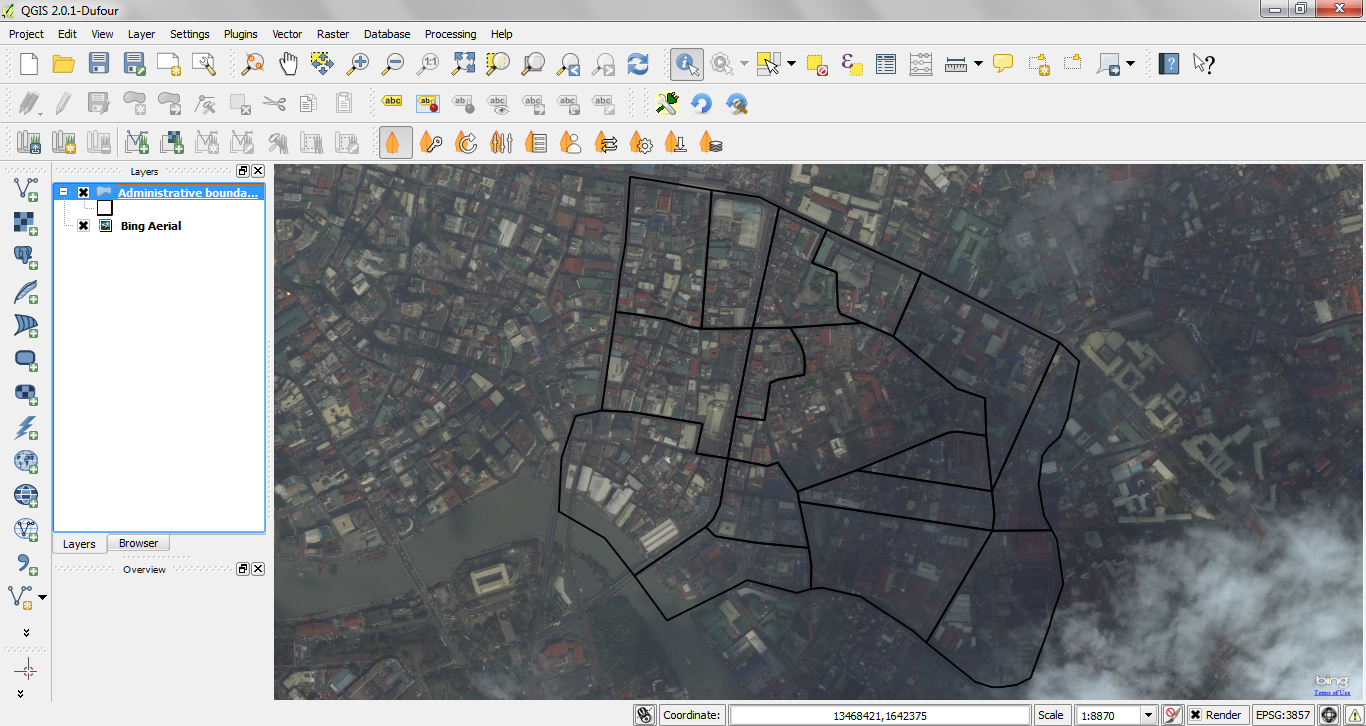
We will use the Bing Aerial layer raster as our primary source for a roads layer.
We will now create a new vector layer, to digitize roads. We will use a line layer to represent this data.
1. To create a new vector layer select Layer ‣
New –>
 New Shapefile Layer.
2. In the Type option, choose Line.
3. In the Specify CRS, select WGS 84 / UTM Zone 51N.
4. In the New attribute, add name in the Name field and choose Text data as the data type. Then, click Add to attributes list. The newly added attribute field is added in the list.
5. Add another attribute column. In the New attribute, add type in the Name field and choose Text data as the data type. Then, click Add to attributes list.
In the name attribute field, we will encode the name of the feature. In the type attribute field we encode the type of road (either primary, secondary, residential, etc.). Click OK.

Tip
Limit field names to a maximum of 10 characters and avoid special characters (such as &, #, @ { ) and spaces.
6. A new window will appear for the filename and location of the data within your directory. Use the filename, quiapo_roads.shp.

Click Save. You now have a blank roads layer.
Before we can begin digitizing, we must set the snapping tolerance to a value that allows us an optimal editing of the vector layer geometries.
Tip
Snapping tolerance is the distance QGIS uses to search for the closest vertex and/or segment you are trying to connect when you set a new vertex or move an existing vertex. If you aren’t within the snap tolerance, QGIS will leave the vertex where you release the mouse button, instead of snapping it to an existing vertex and/or segment.
1. To set the snapping tolerance, select Settings ‣ Snapping options. Within the Snapping options window, activate the Enable topological editing by adding a check mark.
2. In the list of layers, add a check mark to the quiapo_roads. This activates snapping in respective layer. Set the snapping tolerance to 10 map units for quiapo_roads layer. Select Apply –> OK.

When you start editing the roads layer, new vertices will snap if it is within 10 map units or 10 meters of another vertex.
3. Save your project.
We will now start digitizing roads.
Note
This process is called heads-up or on-screen digitizing. This is an interactive process, in which a map is created using a previously digitized or scanned information. It is called “heads-up” digitizing because the attention of the user is focused on the screen.
1. Make sure the quiapo_roads and Bing Aerial layers are visible. Click the checkbox preceding the name of the layer in the Map Legend view to hide/show layers.
2. Zoom-in to an area, where the roads on the image are visible.
3. Select the quiapo_roads layer, right-click and select  Toggle Editing. Once the layer is in edit mode, additional tool
buttons on the editing toolbar previously greyed-out will become available.
Toggle Editing. Once the layer is in edit mode, additional tool
buttons on the editing toolbar previously greyed-out will become available.

For each feature, you first digitize the geometry, then encode the attributes.
4. To digitize the geometry, click the  Add Feature,
left-click on the map area to create the first point/vertex of your new feature.
Add Feature,
left-click on the map area to create the first point/vertex of your new feature.
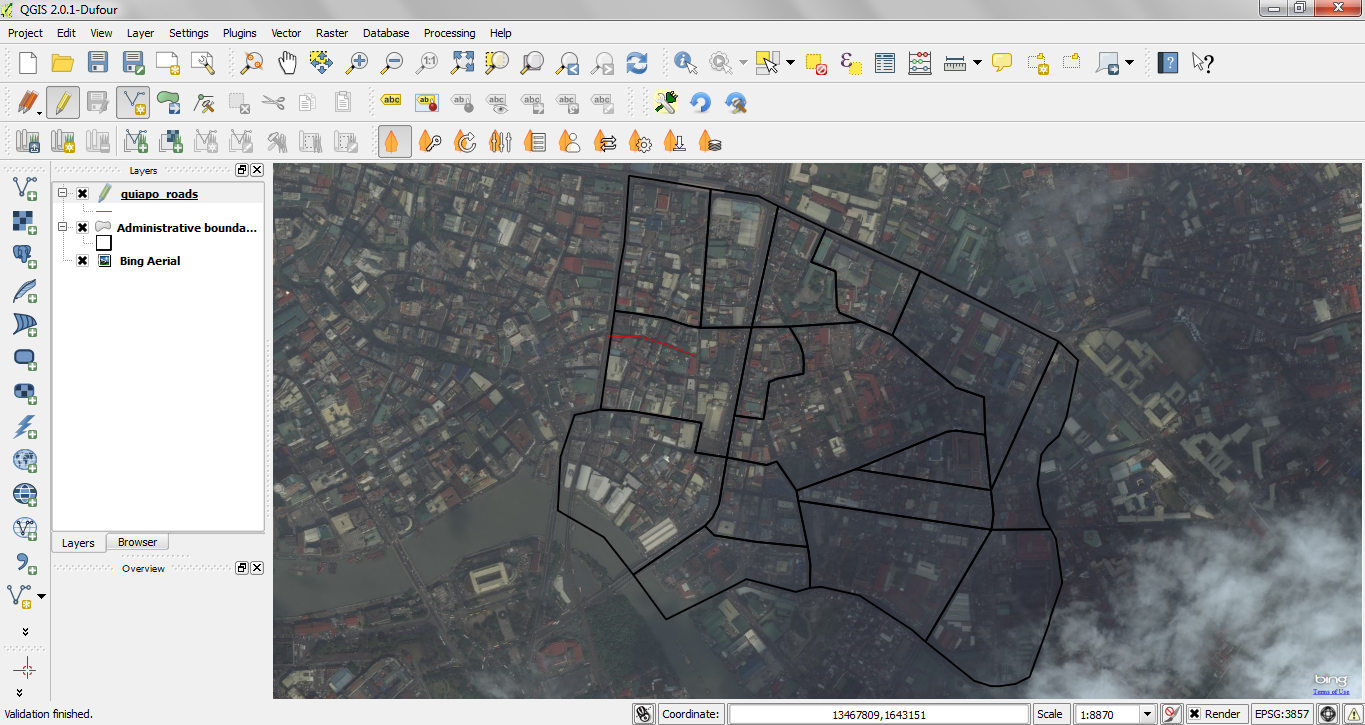
For lines and polygons, keep on left-clicking for each additional vertex you wish to capture. When you have finished adding vertices, right-click anywhere on the Map View to confirm you have finished entering the geometry of that feature.
The attribute window will appear, allowing you to enter the information for the new feature. Add the type of road in the type field and the name of the feature in the name field.
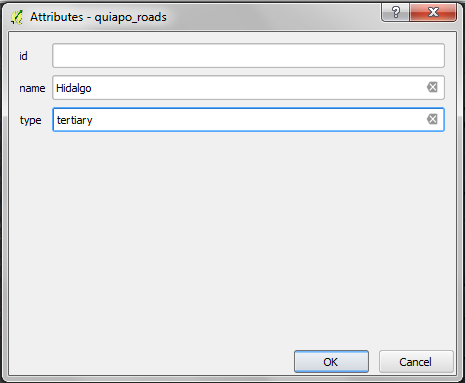
To save your editing session, Toggle Editing
and click Save.
The Node Tool
The  Node Tool provides manipulation capabilities of
feature vertices similar to CAD programs. It is possible to simply select multiple
vertices at once and to move, add or delete them all together. The node tool also
works with on-the-fly projection turned on and supports the topological editing
feature. This tool is, unlike other tools in Quantum GIS, persistent, so when some
operation is done, selection stays active for this feature and tool.
Node Tool provides manipulation capabilities of
feature vertices similar to CAD programs. It is possible to simply select multiple
vertices at once and to move, add or delete them all together. The node tool also
works with on-the-fly projection turned on and supports the topological editing
feature. This tool is, unlike other tools in Quantum GIS, persistent, so when some
operation is done, selection stays active for this feature and tool.
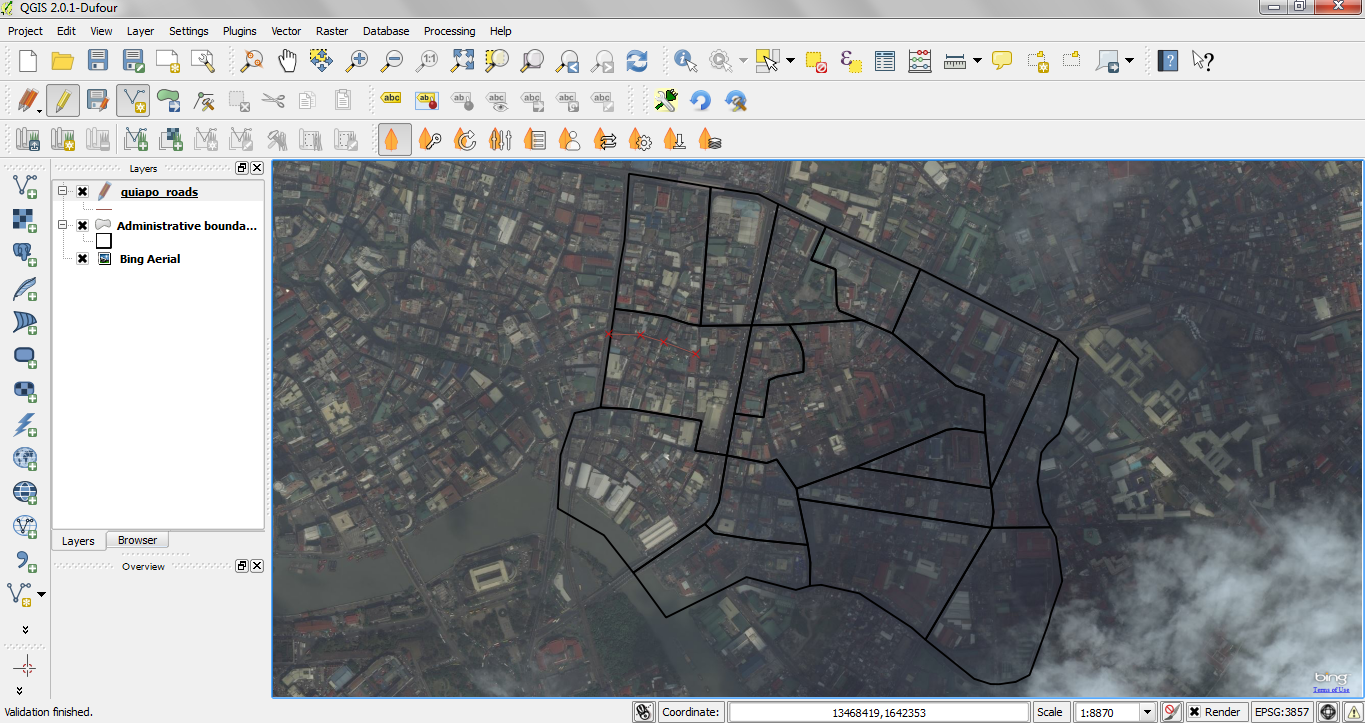
Basic operations
Start by activating the Node Tool and selecting some features by clicking on it. Red boxes appear at each vertex of this feature. Functionalities are:
The rest of the basic editing tools are explained below:
Toggle editing - Enable editing of the
selected vector layer. Save Edits - save your editing session in the
currently selected layer. This is different from Saving your project.
Save Edits - save your editing session in the
currently selected layer. This is different from Saving your project. Add Feature - Point - add point features. Add Feature - Line - add line features.
 Add Feature - Polygon - add polygon features.
 Move Feature - move location of a selected
feature. Node Tool - activate Node tool functions.
Move Feature - move location of a selected
feature. Node Tool - activate Node tool functions. Delete Selected - delete selected one or
more features.
Delete Selected - delete selected one or
more features. Cut Features - delete a selected feature(s) from
the existing layer and place it on a “spatial clipboard”.
Cut Features - delete a selected feature(s) from
the existing layer and place it on a “spatial clipboard”. Copy Features - place selected feature(s) into
the “spatial clipboard”.
Copy Features - place selected feature(s) into
the “spatial clipboard”. Paste Features - paste feature(s) from the
“spatial clipboard” to the currently selected and editable layer.
Paste Features - paste feature(s) from the
“spatial clipboard” to the currently selected and editable layer.Full description of the editing tools and other advanced features available in the QGIS User’s Manual.
5. Finish editing the roads layer.
6. Save your project.
Tip
Remember to toggle Toggle Editing off
regularly. This allows you to save your recent changes, and also confirms that
your data source can accept all your changes.